NumberField
Component for entering numbers.
The <NumberField> component used for capturing numerical input from the user in a form or similar input context. This allows users to input numbers including integers, decimals, and as well as percentages.
The component also offers steppers which provides lower interaction costs.
Anatomy
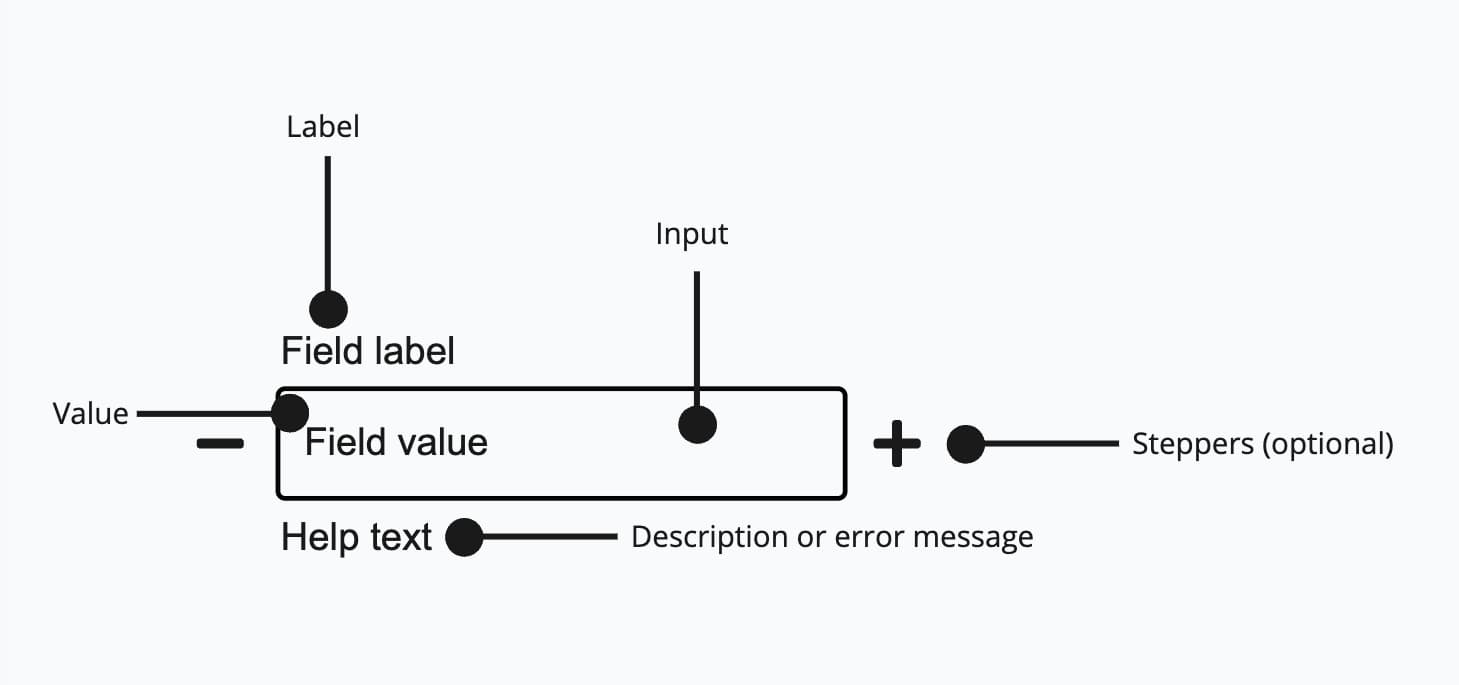
It consists of a label, an input field and a help text. Optional you can also show a help text and stepper buttons for increasing/decreasing values.
Appearance
The appearance of a component can be customized using the variant and size props. These props adjust the visual style and dimensions of the component, available values are based on the active theme.
| Property | Type | Description |
|---|---|---|
variant | - | The available variants of this component. |
size | - | The available sizes of this component. |
Usage
<NumberField> is an input field that accepts only numeric input.
Use Steppers
The stepper buttons make it easier and faster for people to make small numeric changes. It allows people to increase or decrease a number with a single button press, or by typing the number in the field.
Hide steppers
If you don't want the step buttons to appear, you can easily remove these with
the hideStepper property.
Also keep in mind using the width property is essential to provide a good user experience. So each input field shouldn't be larger than the expected content. For example
when using stepper buttons it is better to have shorter fields, so that the user can easier reach these buttons (lower interaction costs).
Confirm Guests
import { Headline, NumberField, Stack, Text } from '@marigold/components';export default () => ( <Stack space={5}> <div> <Headline level={3}>Confirm Guests</Headline> <Text>Who's going on your trip?</Text> </div> <NumberField defaultValue={3} minValue={0} maxValue={20} width="1/6" label="Adults" /> <NumberField defaultValue={0} minValue={0} maxValue={20} width="1/6" label="Children" /> <NumberField defaultValue={0} minValue={0} maxValue={20} width="1/6" label="Infants" /> </Stack>);Use steppers to make small numeric changes, else the interaction cost would be high.
Use Format Options
With <NumberField> you can use Intl.NumberFormatOptions which comes in handy to format the numbers in a certain format, e.g. percent,unit, decimal and currency.
For a full list of supported options, see corresponding MDN Docs. A full list of suported units can be seen here.
import { NumberField, Stack } from '@marigold/components';export default () => ( <Stack space={4}> <NumberField label="Amount" defaultValue={19.99} formatOptions={{ style: 'currency', currency: 'USD', }} /> <NumberField label="Decimals" formatOptions={{ signDisplay: 'exceptZero', minimumFractionDigits: 1, maximumFractionDigits: 2, }} step={0.1} defaultValue={0} /> <NumberField label="Length" defaultValue={150} minValue={0} formatOptions={{ style: 'unit', unit: 'centimeter', unitDisplay: 'short', }} /> <NumberField label="Percentage" defaultValue={0.42} formatOptions={{ style: 'percent', }} /> </Stack>);In addition, use units to support the label and make it clear what the user is entering in a particular number field.
Label
In general label should be short and precise about what is expected from the user. Avoid unnecessary instructional verbs (doing words) in your labels and hints because it's already implied by the input field. Avoid placeholder text in most cases, as there's no need for it (more about it in the next section).
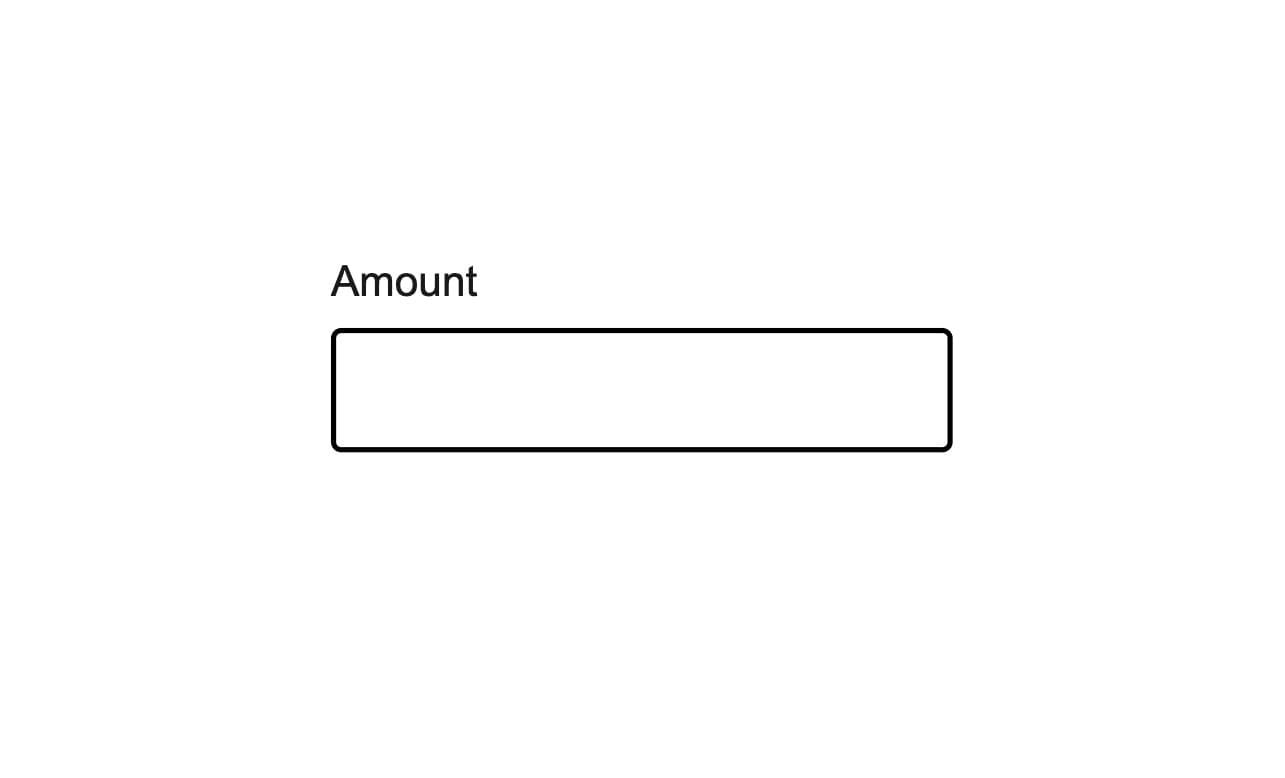
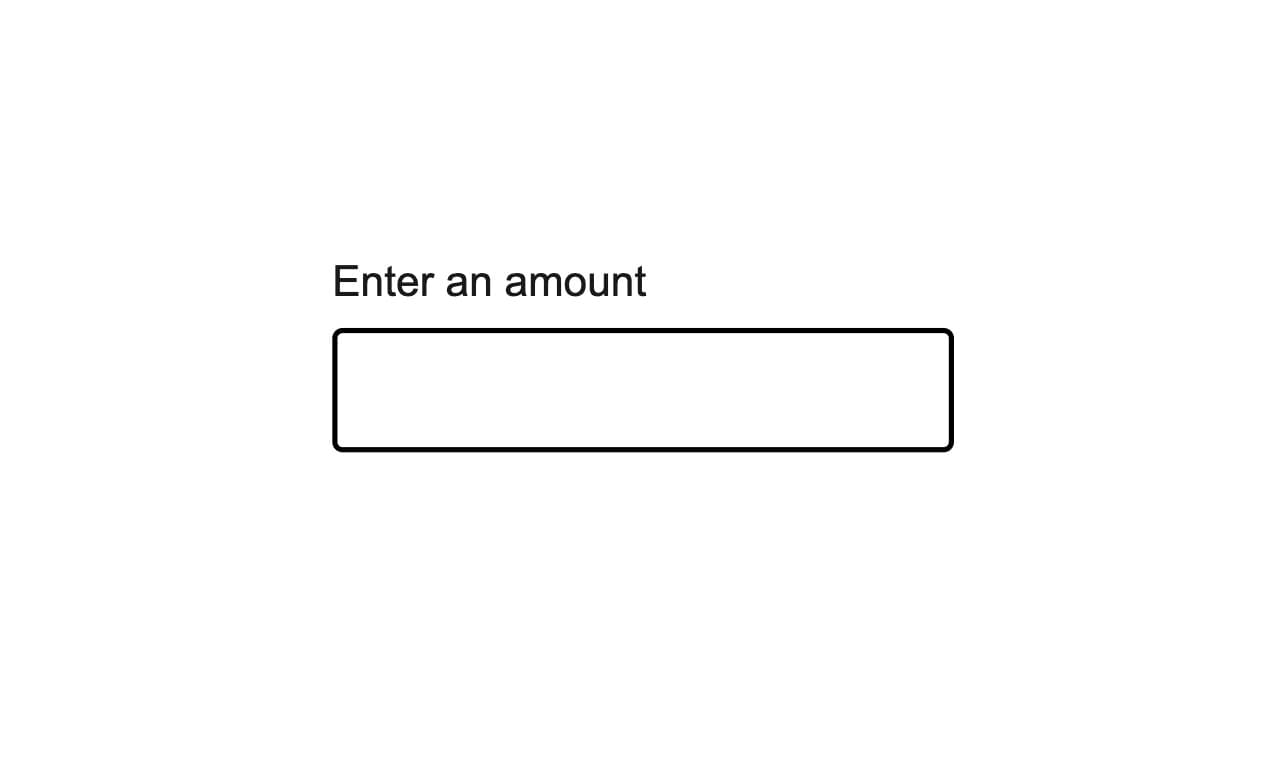
Don't use unnecessary instructional verbs.
Placeholder
Placeholder text is a short hint displayed inside an input field before a user enters a value. To save space, placeholder text is often used instead of a label, as shown in the first example. This is problematic for the following reasons:
- Placeholder text disappears once a person starts filling in an input field, causing some to forget what the field was for
- Some might miss or skip fields with placeholder text, as it can look like the field has already been pre-filled.
- Placeholder text colour contrast is almost always inaccessible, as it's very light by design. This means many will struggle to read the label.
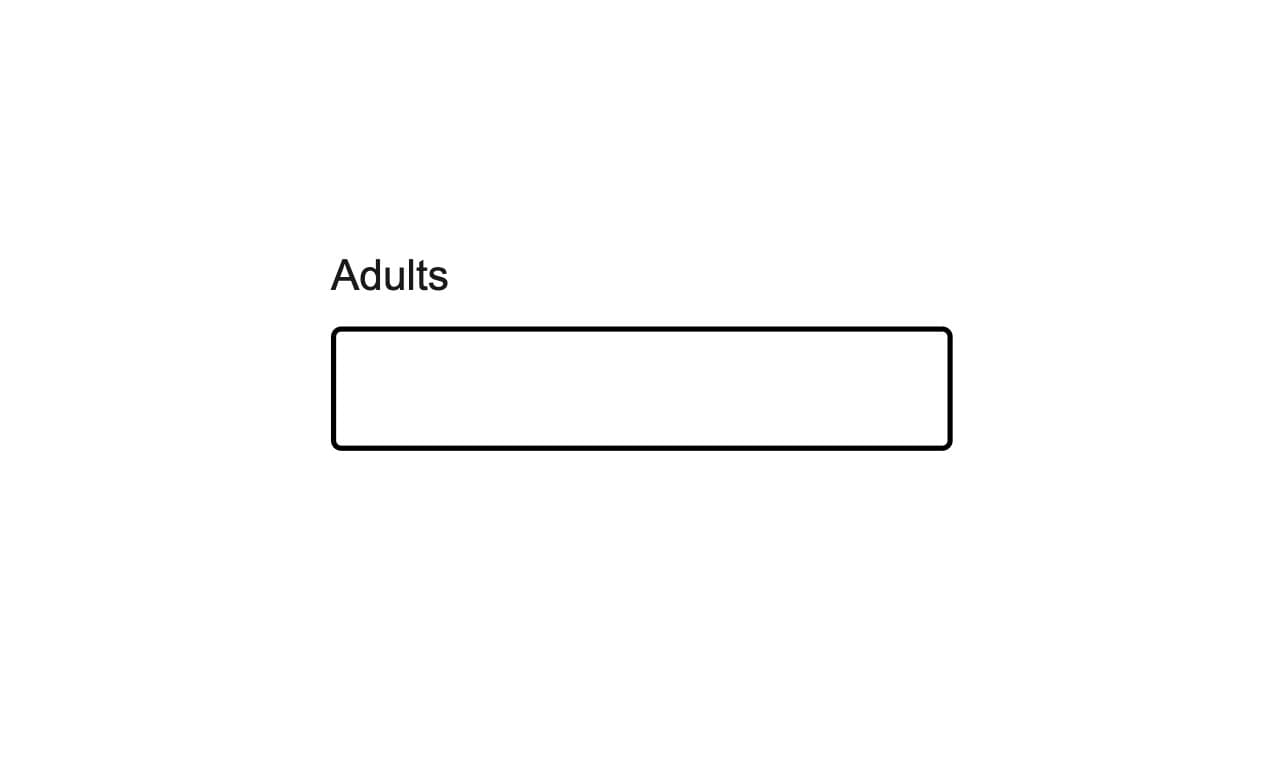
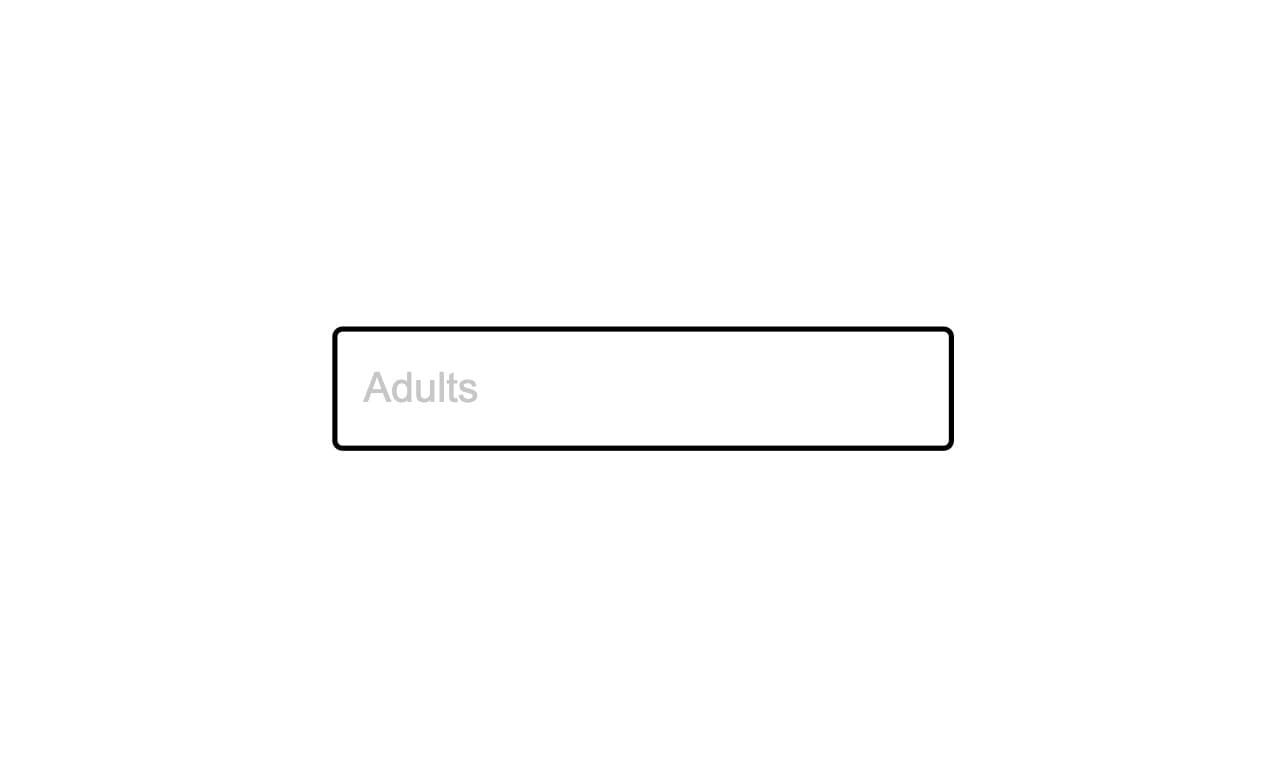
Don't use placeholder text instead of a label.
Additional Description
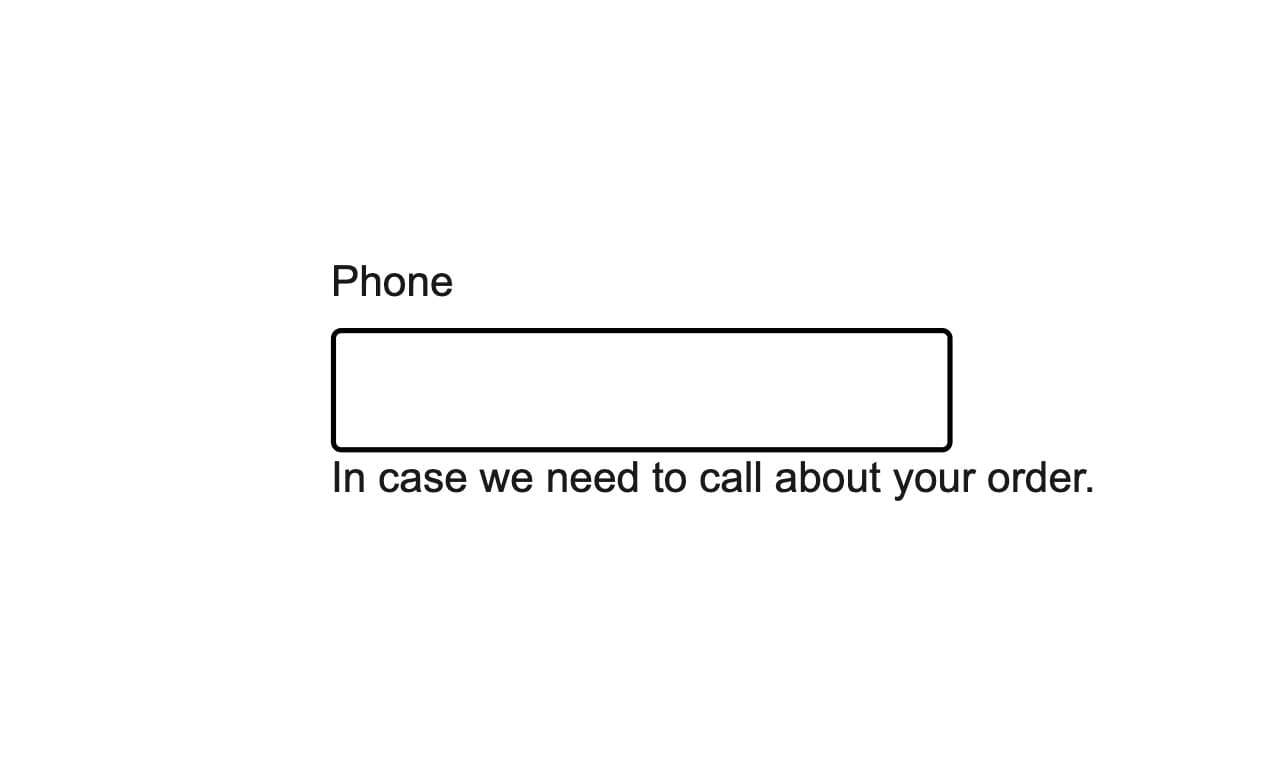
Sometimes the label isn't enough for the user. In this case, to gather additional support for the user we can use the help text. With this we can add helpful hints for the user below the input field. Beside that the help text is placed in close proximity to the associated input field.
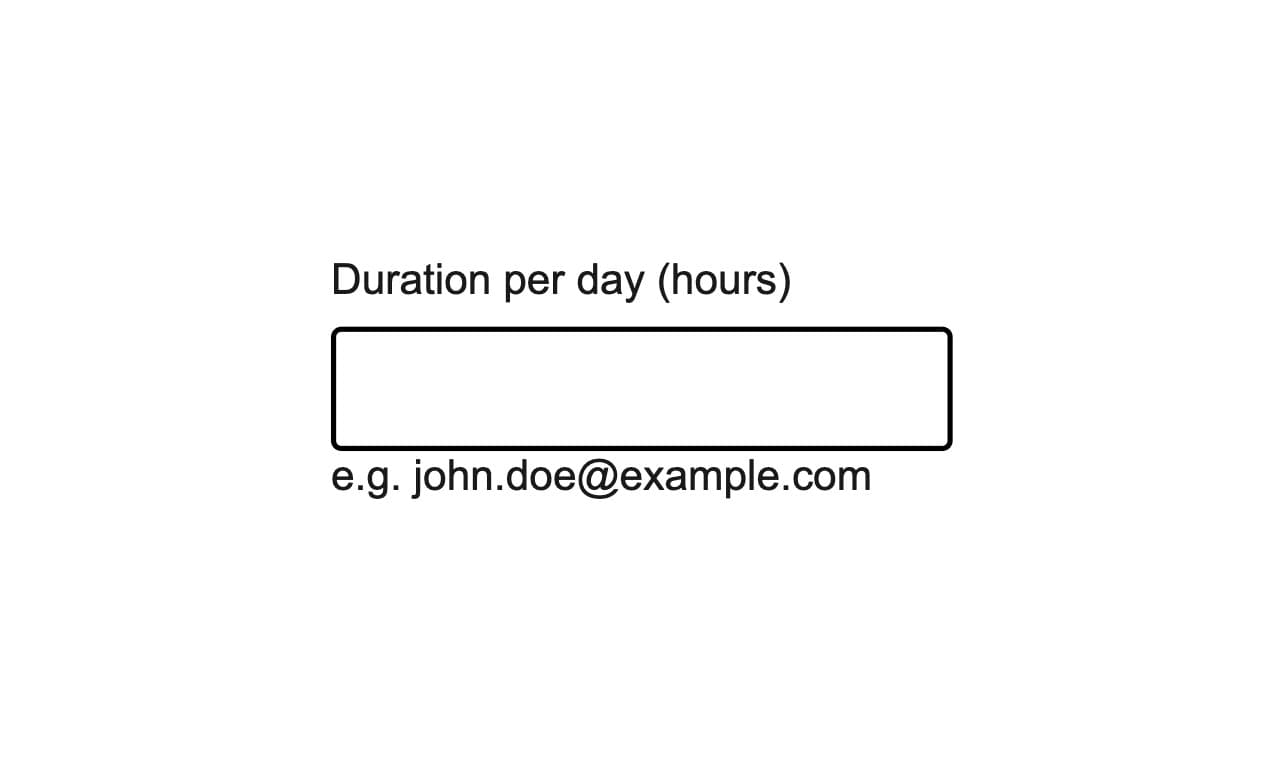
Use help text to show an example what's expected.
NumberField With An Error
Error messages should let people know that a problem occurred, why it happened, and provide a solution to fix it and move forward.
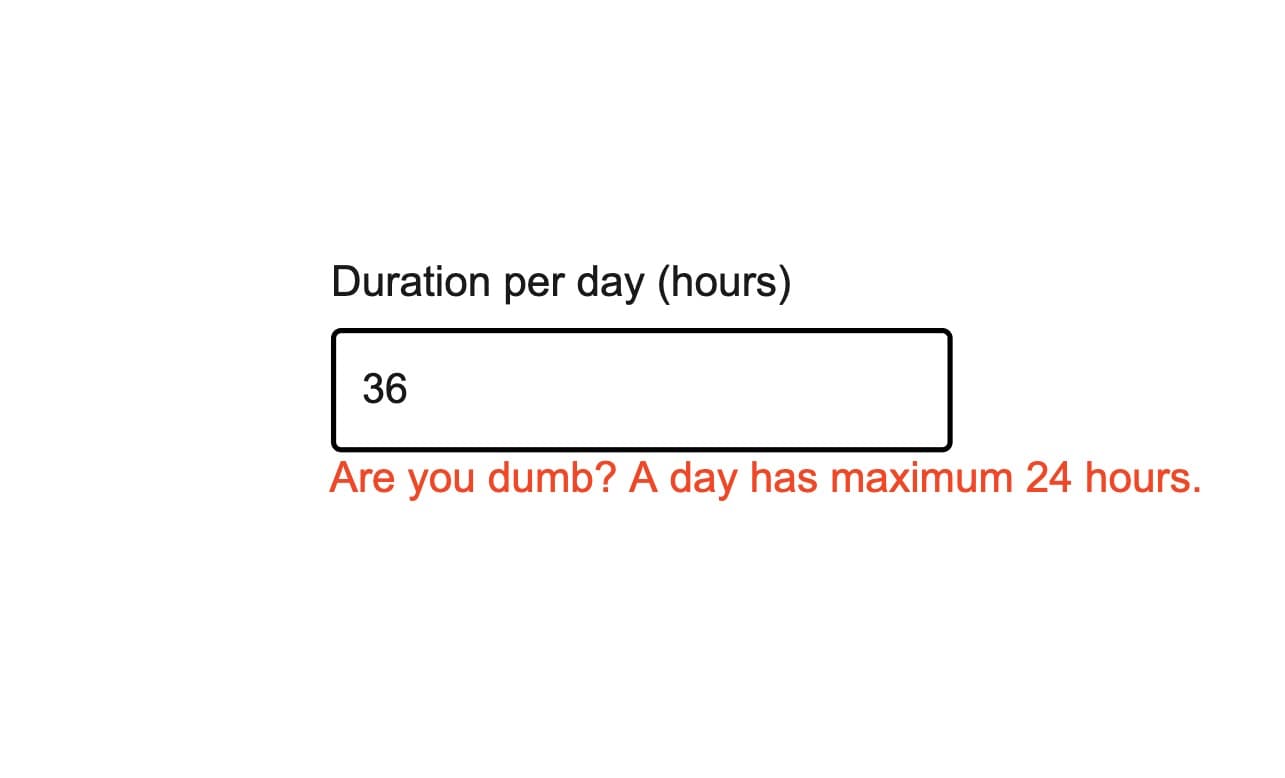
Never blame the user. Always be positive and helpful.
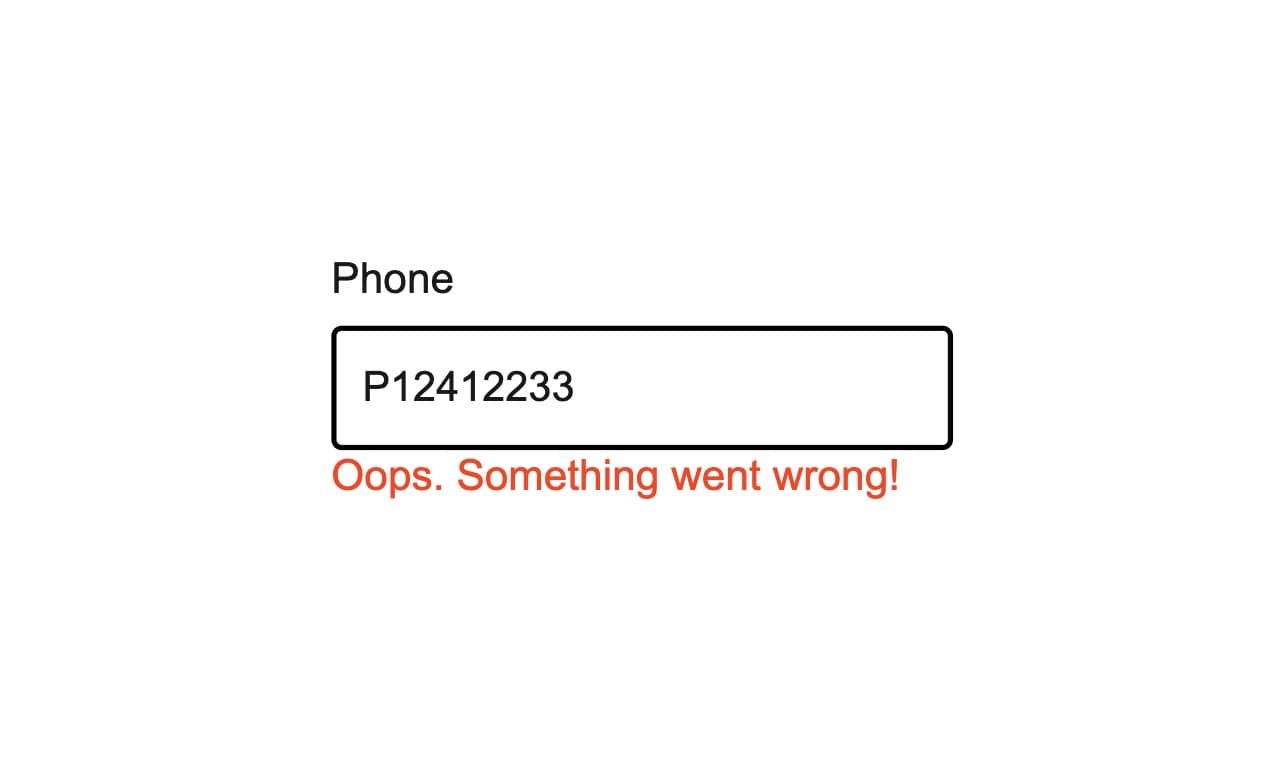
Be concise and avoid unnecessary words like "please", "sorry" and "oops"
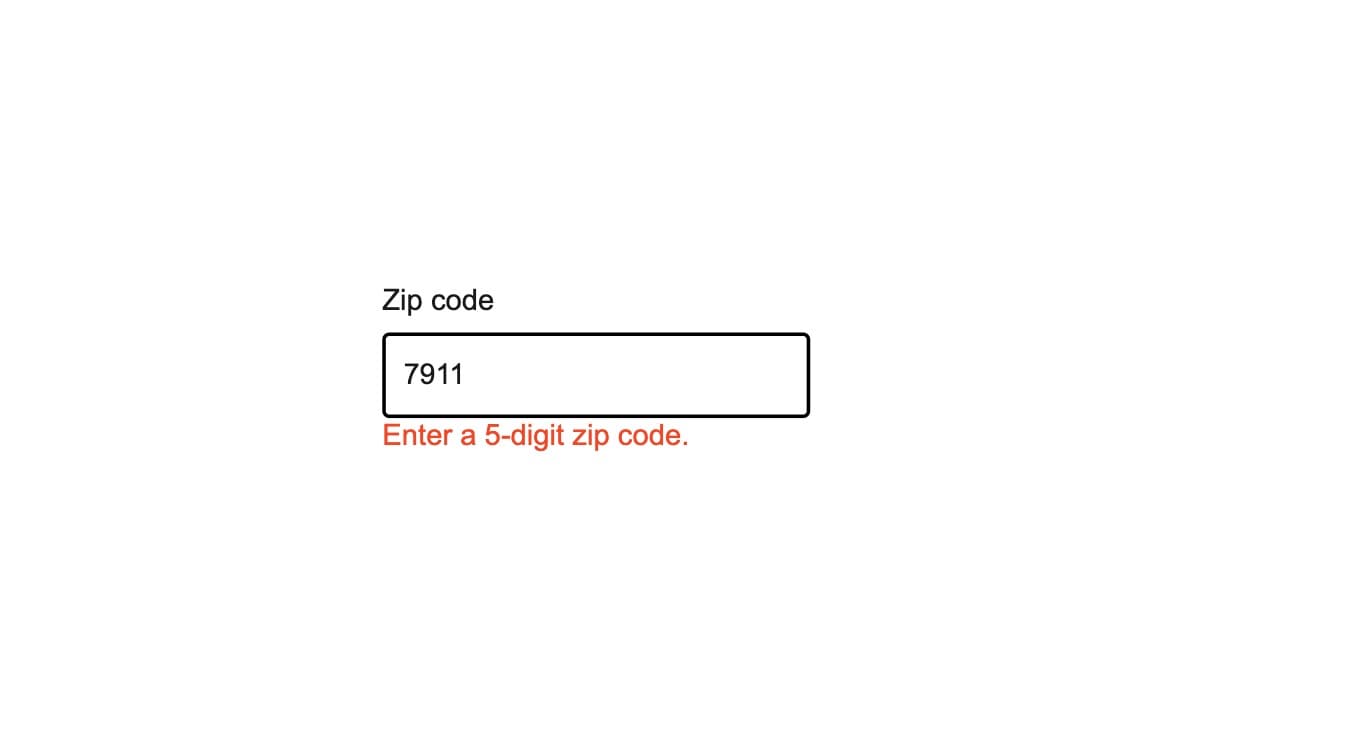
Use detailed messages instead of global messages.
The error prop toggles the error state of a field. The errorMessage prop can then be used to provide feedback to
the user about the error. The message disappears automatically when all requirements are met.
import { useState } from 'react';import { NumberField } from '@marigold/components';export default () => { const [charge, setCharge] = useState<number>(9999); const errors: string[] = []; if (charge > 1000) { errors.push('The charge is not allowed to be more than 1.000 €'); } return ( <NumberField label="Charge" value={charge} formatOptions={{ style: 'currency', currency: 'EUR', }} minValue={0} error={errors.length > 0} errorMessage={errors} onChange={setCharge} hideStepper /> );};Note
Press Enter, after typing your text, to trigger the validation.
Props
NumberField
Prop
Type